1.5.1. Lab 1.4: Build a webtop with VMware View and Citrix
This lab will leverage the APM access policies created in prior labs to build a unified webtop with access to Vmware View and Citrix
1.5.1.1. Task 1 – Build a VIP with an Access Policy allowing acces to VMware and Citrix
From the “corporate-pc”.
Connect to the F5 config GUI
- https://f5-bigip1a.demosifun.net
- Username: admin
- Password: password
Copy the VM_LAB_1_PCOIP access profile to VDI_Combined_webtop
- Access>>Profiles/Policies>>Access Profiles
- Click the “Copy” hyperlink on the VM_LAB_1_PCOIP line
- Name the profile VDI_Combined_webtop
- Press the “Copy” button (bottom left)
View the characteristics of the VDI_Combined_webtop and VM_LAB_2_LBSS access policies
- View the VM_LAB_2_LB_SF Access profile. The subsequent steps will integrate the required components from that Citrix policy with the copy of the VM_LAB_1_PCOIP we created (VDI_Combined_webtop- Access>>Profiles/Policies>>Access Profiles
- Click the “Edit” hyperlink on the VM_LAB_2_LB_SF
Open the VDI-Combined_webtop to add the required objects and parameters
- Access>>Profiles/Policies>>Access Profiles
- Click the “Edit” hyperlink on the VDI_Combined_webtop
- Review the existing VPE configuration
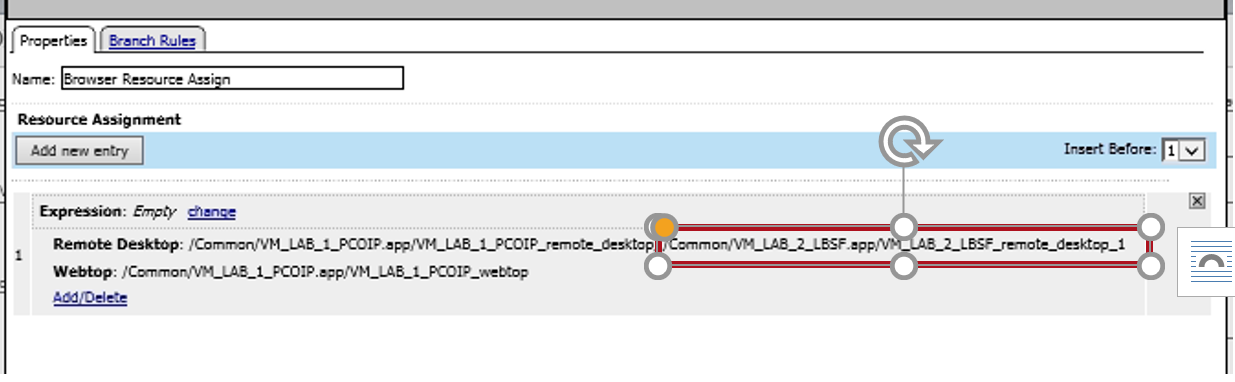
Add Citrix to the Browser Resource assign on the Full or Mobile Browser branch
- Click on the “Add/Delete” link in the Browser Resource Assign pop up window
- Select the Remote Desktop tab
- Add /Common/VM_LAB_2_LBSF.app/VM_LAB_2_LBSF_remote_desktop_1
- Press the “Update” button
- Pres the “Save” button
Add a branch for the Citrix Receiver to the Client type decision Box
- Click on the “Client Type” object - Select the “Branch Rules” Tab
- Click the “Add Branch Rule” button
- Name: Citrix Receiver
- Press the “change” link in the section
- Click on the “Add Expression”
- Agent Sel: UI Mode
- Condition: UI Mode
- UI Mode is: Citrix Reciever
- Click on “Add Expression”
- Click the “Finished” button
- Click on the “Save” button (this takes a while)
Add a Logon Page object to the Citrix Receiver branch
- Click the “+” to the right of Citrix Reciever branch of the Client Type Object
- Select the “Logon” tab
- Select Logon Page
- Click the “Add Item” button
- Review the default settings
- Click the “Save” button
Add a Domain Variable Assign object to the Citrix Receiver branch
- Click the “+” to the right of the Logon Page
- Select the “Assignment” tab
- Select “Variable Assign”
- Click the “Add Item” button
- Click the “Add new entry” button
- Click the “change” link
- Custom Variable, Insecure, Enter session.logon.last.domain in the left panel
- Custom Expression, Enter expr {“demoisfun”} in the right panel
- Click the “Finished” Button
- Click the “Save” button
Add an AD Auth object to the Citrix Receiver branch
- Click the “+” to the right of Variable Assign
- Select the “Authentication” tab
- Select “AD Auth”
- Click the “Add Item” button
- Use the pulldown to select Server:/Common/AD1
- Click the “Save” button
Add an Advanced Resource Assign object to the Citrix Receiver branch
- Click the “+” to the right of Ad Authd - Select the “Assignment” tab
- Select “Advanced Resource Assign”
- Click the “Add Item” button
- Click the “Add new entry” button
- Click the “add/delete” link
- Select the “Remote Desktop” tab
- Select /Common/VM_LAB_2_LBSF.app/VM_LAB_2_LBSF_remote_desktop_1
- Click the “Update” button
- Select the “Webtop” tab
- Select Common/VM_LAB_2_LBSF.app/VM_LAB_2_LBSF_webtop
- Click on the “Deny” action on the fallback link out of the Advanced Resource Assign
- Select “Allow”
- Click the “Save” button
- Click the “Update” button
- Click the “Save” button
Apply the access policy
-Click on the Apply Access policy in the upper left corner of the VPE GUI. Note the yellow vertical bar next to it indicating the policy has been modified -Close the VPE (Close button in the upper right corner) - Access>>Profiles/Policies>>Access Profiles - Verify that all Access policies status is Green (refresh browser if necessary)
Create a VIP for PCOIP UDP traffic
- Navigate to Local Traffic>>Virtual Servers>>Virtual Server List
- View the configuration of the VM_LAB_1_PCOIP_pcoip_udp VIP. We will replicate this configuration using the IP of the new VIP we created for VDI access (Hint—Open an additional browser window connected to F5-bigip1a.demoisfun.net. This will allow you to display different VIPs in the same device)
- Navigate to Local Traffic>>Virtual Servers>>Virtual Server List
- Press the Create Button in the upper right section of the GUI
- Configure the VIP with the variables below
VIP Config Parameters
| General Properties | |
| Name | Combined-VDI-PCOIP |
| Destination Address/Mask | 192.168.3.157 |
| Service Port | 4172 |
| Configuration | |
| Prptocol | UDP |
| Source Address Translation | Auto Map |
| Access Policy | |
| Application Tunnels (Jave & Per-App VPN) | Enabled - Check Box |
Update the VIP
- Click “Update” at the bottom of the screen
Create a Combined VIP for the Citrix and VMware connectivity - Navigate to Local Traffic>>Virtual Servers>>Virtual Server List - Press the Create Button in the upper right section of the GUI - Configure the VIP with the variables below
VIP Config Parameters
General Properties Name Combined-VDI-Desktop Destination Address/Mask 192.168.3.157 Service Port 443 Configuration HTTP Profile http SSL Profile (Client) VM_LAB_1_PCOIP_client_SSL SSL Profile (Server) serverssl Source Address Translatio Auto Map Access Policy Access Profile VDI_Combined_webtop Connectivity Profile VM_LAB_1_PCOIP_connect VDI Profile vdi
Task 2 – Test Connectivity
- Test the connectovity to VMware ad Citrix
- From “home-pc”
- Launch IE and browse to http://vdi.demoisfun.net (192.168.3.157)
- When prompted for credentials
- Username: demo01
- Password: password
- APM webtop is displayed with Agility - Vmware View Desktop and Agility - Agility VDI Class (Citrix)
- Click on Agility - Agility VDI Class to launch XenDesktop
- Click Open to launch the Citrix ICA client (pop up box at bottom)
- Verify that desktop is functional
- In Citrix Agility desktop, click on Start and Logoff
- This will return you to the webtop
- Click on Agility - Vmware View Desktop
- At the Cert Warning, click “Continue to this website”
- Verify that the Agility desktop functions
- Close the IE browser window (Scroll to the upper right corner of the window and hit the “X”
- Close the browser window